
One message reaches every parent
Send the packing list or the bus times by email, text or phone call. Someone in the office approves every message. Texts and calls only go to parents who opted in.
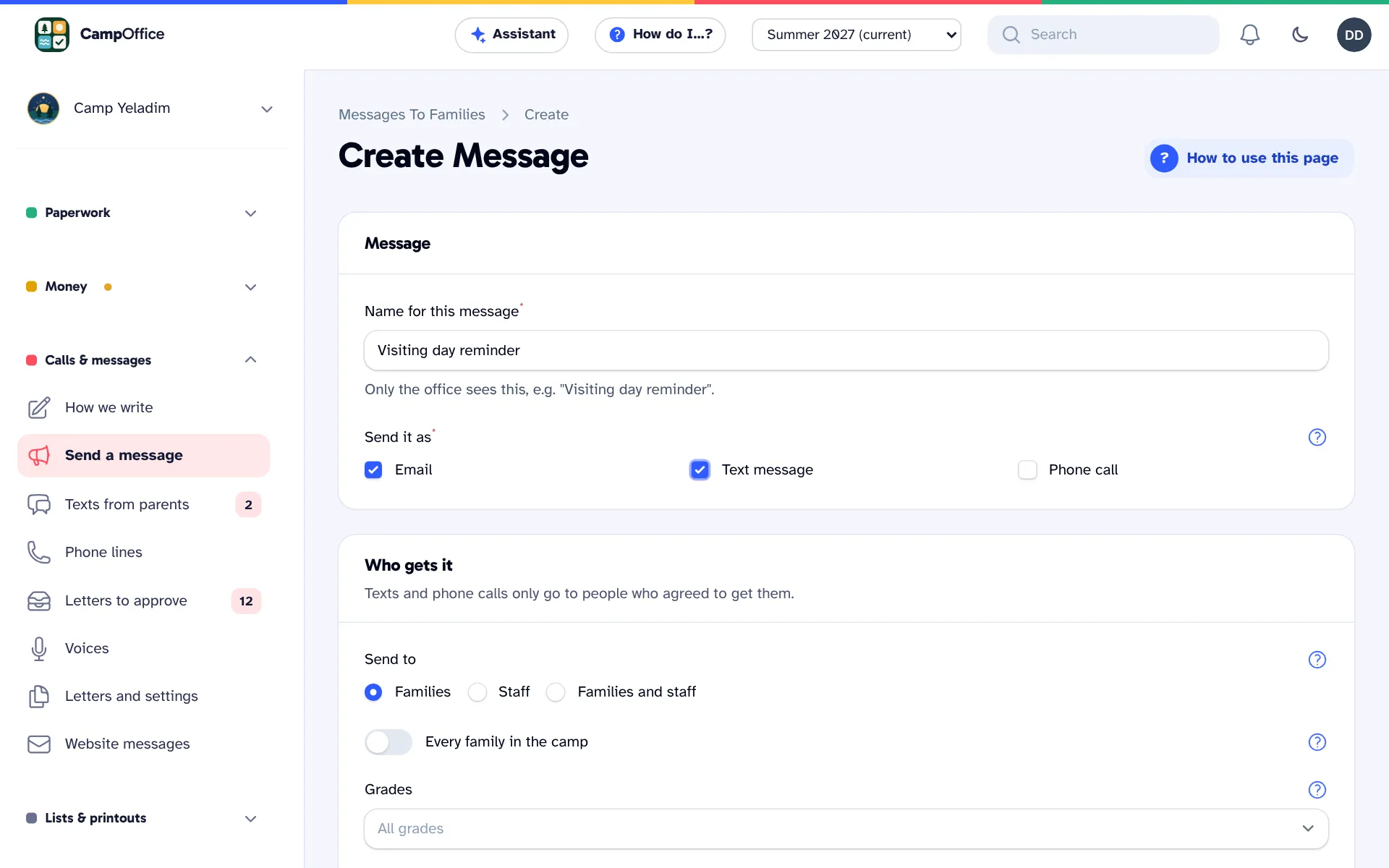
Email, text and phone call from one screen
Write the message once and choose how it is sent. Choose recipients in plain terms: one grade, one bunk, the wait-list, fathers only. Before sending, send yourself a test and review exactly who receives it and what it costs. Then send it or schedule it.
- Fill-ins add each family's details, such as the parent's name, the balance and their link.
- Never sent during quiet hours. A parent can reply STOP at any time.
- Emails are sent from your camp's own address, with attachments.
Phone calls in your own voice
Record a phone message on the page, upload a recording, or type it and have it read aloud in the tone and speed you choose. Hebrew and Yiddish words are pronounced the way you teach them.
A hotline for parents
Give parents one number for the daily update and visiting day: a greeting, a press-1 menu, messages read aloud or recorded, calls forwarded to a phone, and voicemail for the office.
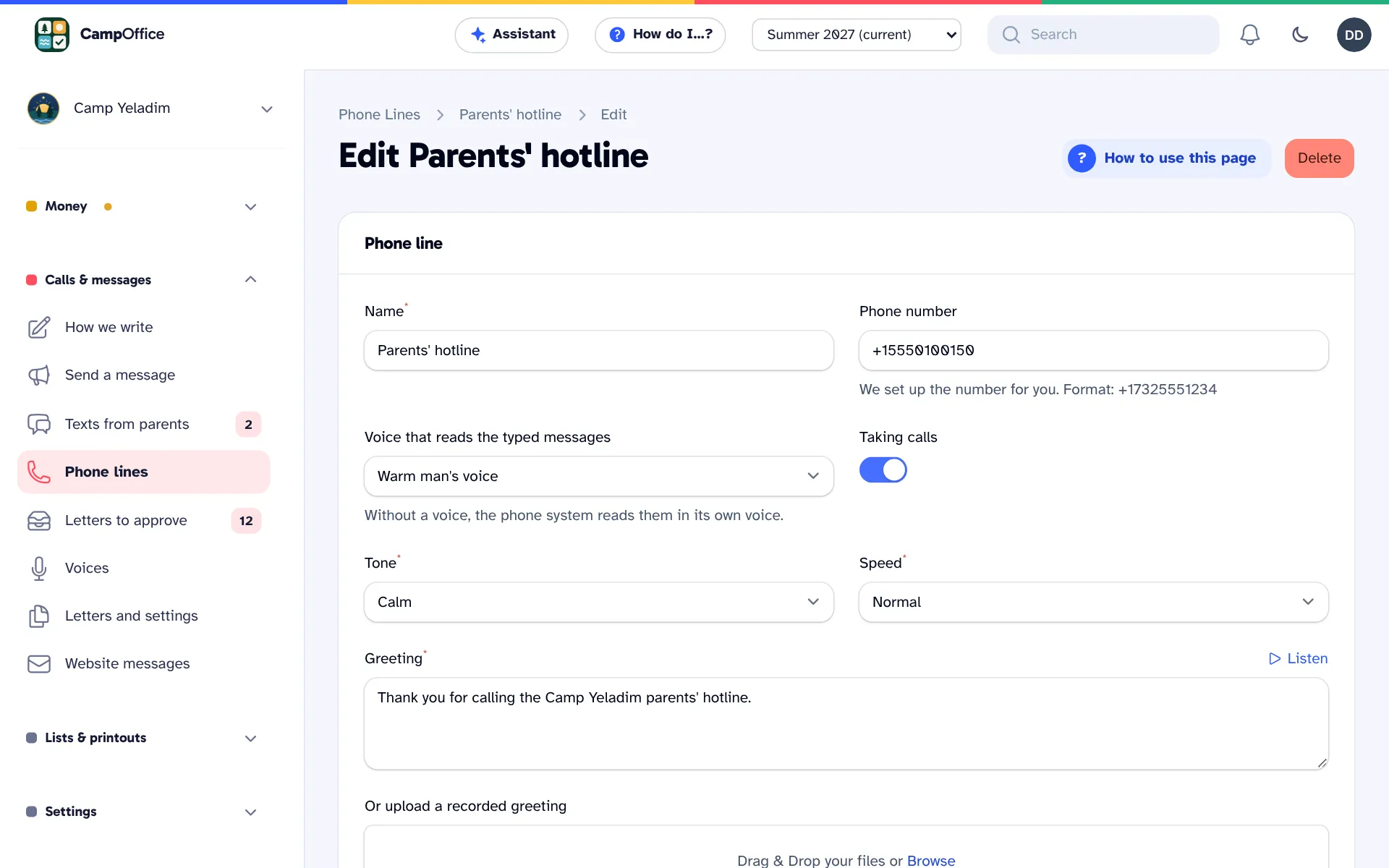
Manage it from your phone
Text the camp number to change the hotline message, turn the hotline on or off, or send a message to families. Nothing changes until you reply with a code sent only to your phone. Or call in, enter your PIN, and record a new hotline greeting or a message to families.
Replies and letters to approve
Read and answer parents' text replies in one inbox. When something happens, such as a registration or a payment, the letter to the family is prepared for you to review, edit and approve. None are sent automatically.
Slideshows of the summer
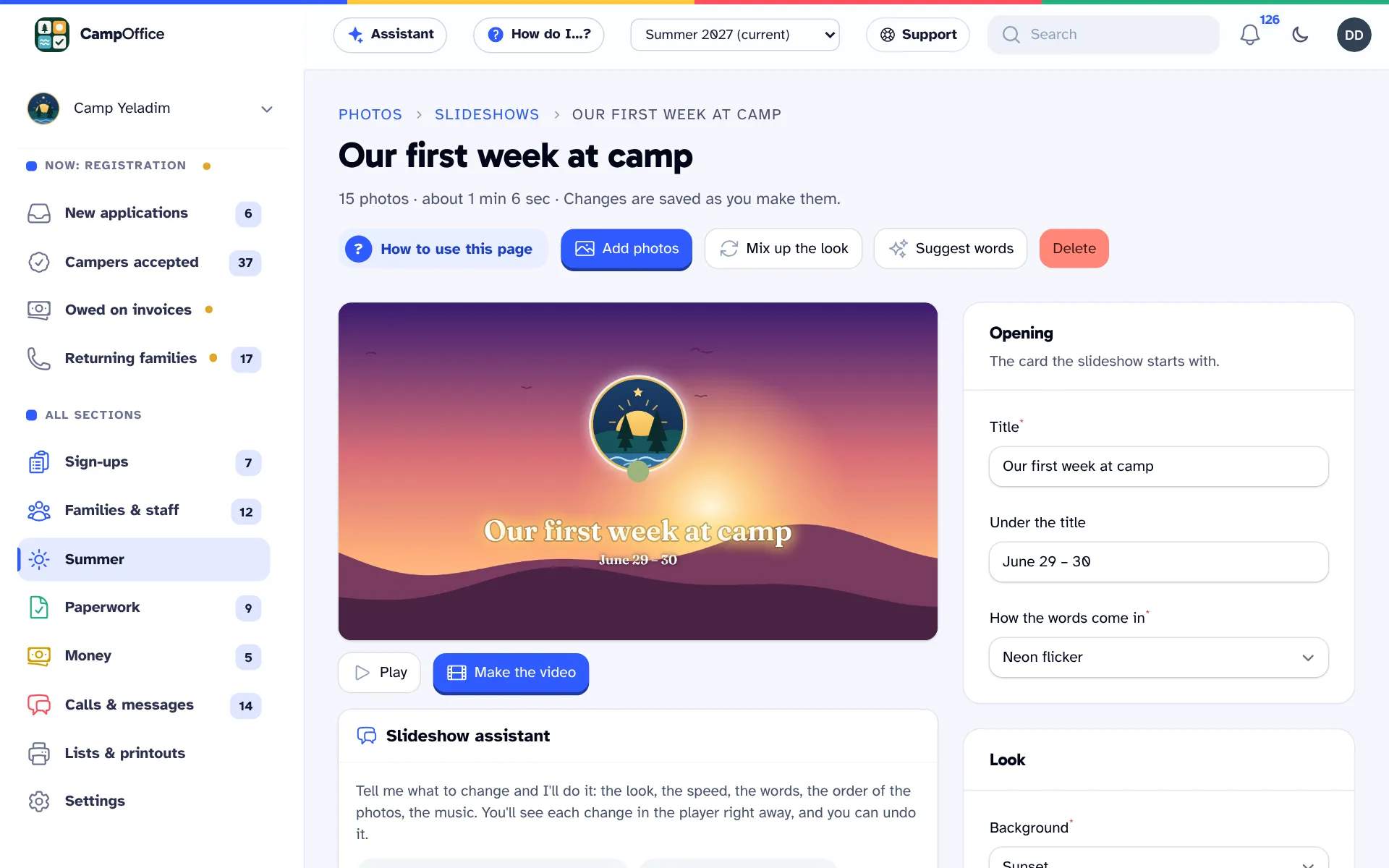
Turn the week's photos into a slideshow video, with titles, music and your own recordings. Tell the slideshow assistant what to change in plain words, such as "slower" or "more cheerful", see it change right away, then make the video to share with families.
Questions about messages and phone
Will parents get texts or calls they didn't ask for?
No. Texts and calls only go to parents who checked the box, never late at night or early in the morning, and only after someone in your office approves the message.
Do we need our own phone number?
Yes. You need a local number for texts, calls and the hotline, registered with the phone carriers so your texts can be delivered. With We run it for you, we set it up.
What does a message cost?
You see the cost before you send. The pricing page lists the price of each email, text and phone call.
Can we send a message to one grade or bunk only?
Yes. Choose recipients in plain terms: one grade, one bunk, the wait-list or fathers only. You see exactly who receives it before it is sent.
Can a phone message be in our own voice?
Yes. Record it on the page, upload a recording, or type it and have it read aloud. Hebrew and Yiddish words are pronounced the way you teach them.
Can we schedule a message for later?
Yes. Send yourself a test first, then send it now or choose a time. It is sent only after someone in the office approves it.
Can parents text back?
Yes. Parents' replies arrive in one inbox in the office, where you read and answer them.
See how it works for your camp
Explore a sample camp with made-up families, or tell us about your camp and we will show you how CampOffice would work for it.